

Gallery
The gallery shortcode creates a responsive image gallery from all image assets in the current page directory. It automatically detects and displays JPG, JPEG, PNG, GIF, and WebP images.

image1

image2

image3

image4
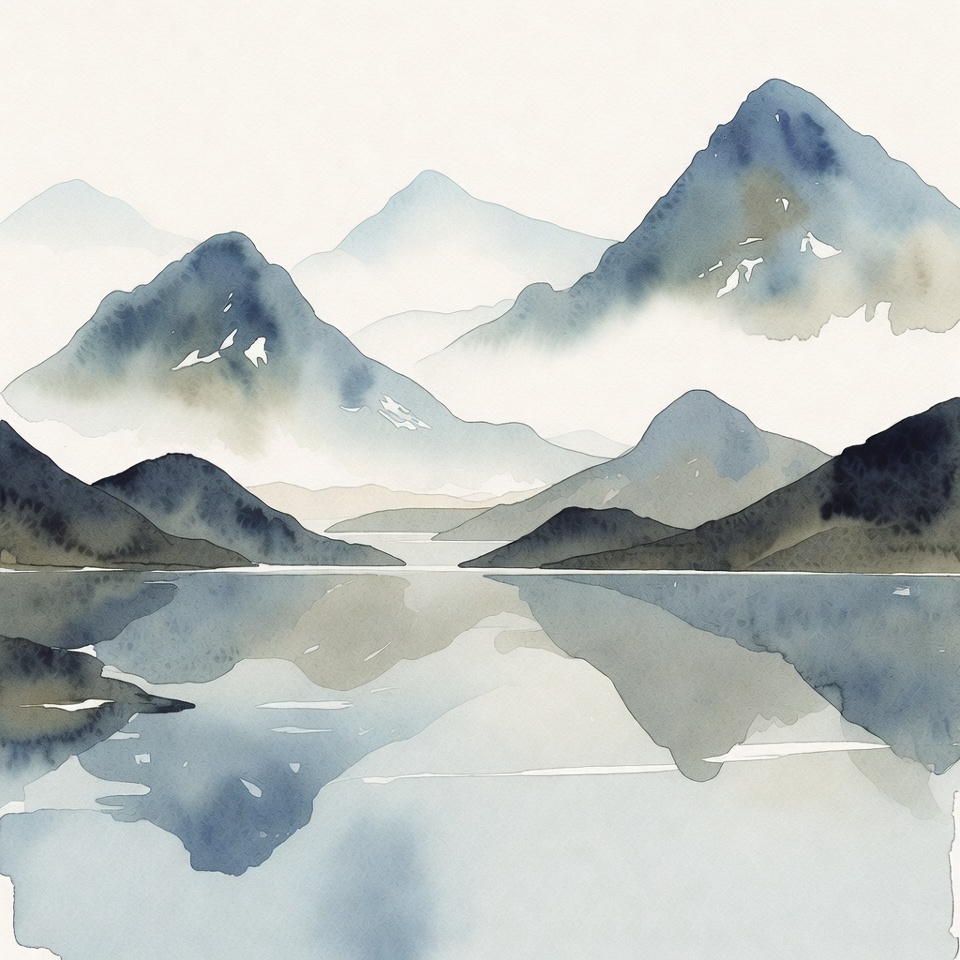
image5
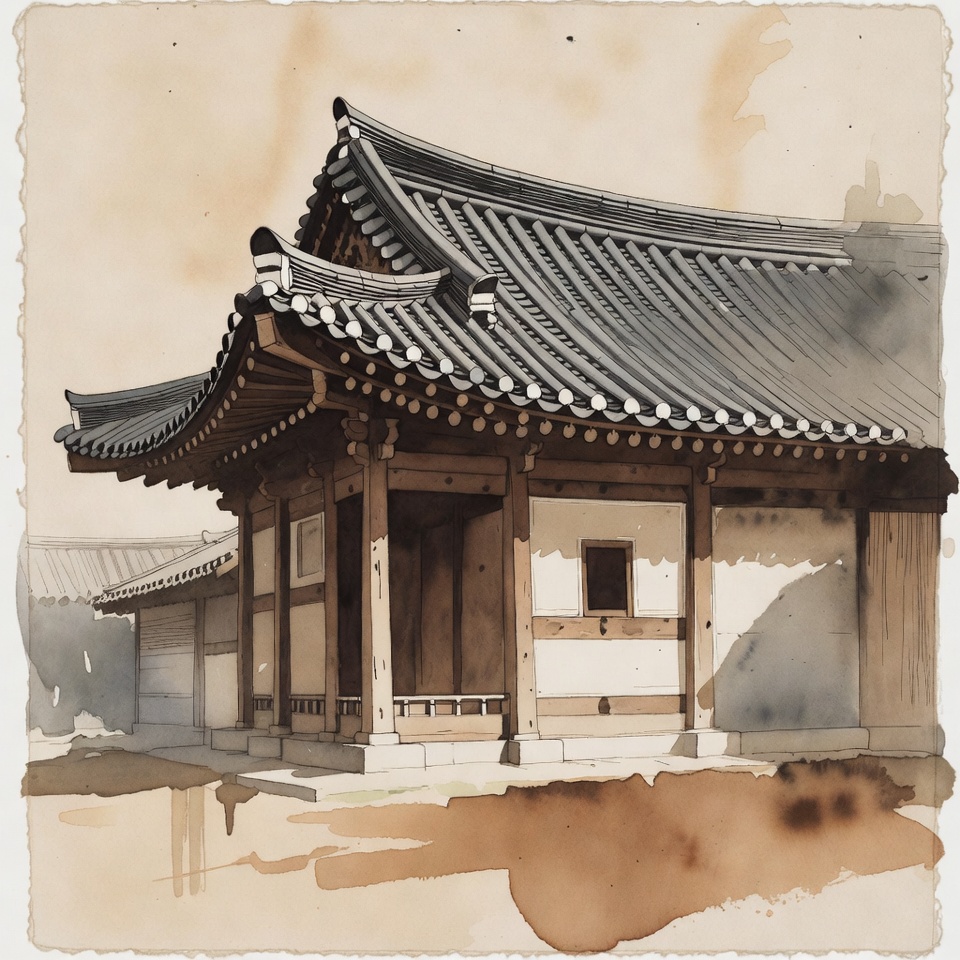
image6
Usage
Place image files (.jpg, .jpeg, .png, .gif, .webp) in the same directory as your page's index.md file, then use the shortcode:
{{ gallery() }}Parameters
| Parameter | Type | Default | Description |
|---|---|---|---|
cols | number | 3 | Number of columns on large screens |
show_name | boolean | true | Whether to show the image filename below each image |
Examples
Basic Usage
{{ gallery() }}image1
image2
image3
image4
image5
image6
Custom Columns
{{ gallery(cols=4) }}image1
image2
image3
image4
image5
image6
Hide Image Names
{{ gallery(show_name=false) }}Combine Options
{{ gallery(cols=2, show_name=false) }}Features
- Responsive Grid: Automatically adjusts columns for different screen sizes (2 columns on mobile, 3 on tablet, configurable on desktop)
- Auto-detection: Automatically finds all images in the page directory
- Image Optimization: Images are resized for optimal loading performance
- Lightbox Support: Click on any image to view the full-size version in a new tab
- Hover Effects: Smooth scale animation on hover
- Theme Integration: Follows the Goyo theme's styling with shadows and rounded corners
Directory Structure
To use the gallery, organize your content like this:
content/
└── your-page/
    ├── index.md       # Your page content with the gallery shortcode
    ├── photo1.jpg     # Image files
    ├── photo2.png
    └── photo3.webp
Notes
- Images are resized to 480x360 pixels for thumbnails
- The original full-size images are available when clicking on thumbnails
- Image filenames (without extension) are used as captions
- Only image files are processed; other file types are ignored
Found an error or it needs a clarification?
Open an issue on GitHub.
Substantiated corrections will be incorporated with attribution.
Found a typo?
Fork, modify and open a PR.